


Why You Need an AI Excel Assistant for Spreadsheet Automation
Spreadsheets remain the undisputed backbone of corporate data analysis, but mastering complex formulas is a massive time sink. Enter the modern AI Excel assistant, a tool designed to completely eliminate manual data formatting and formula memorization.
While power users are already finding ways to integrate generalized models like ChatGPT and Claude into their workflows, specialized plugins offer a more frictionless experience. Griddy AI is one of these specialized solutions, engineered to bridge the gap between complex data manipulation and plain English.
Griddy AI operates as an intelligent interpreter that translates natural language prompts into direct workbook actions. Instead of digging through endless ribbon menus or debugging broken VLOOKUPs, users simply type their objective. The assistant handles the underlying spreadsheet automation, executing the required actions while keeping all native Excel features fully accessible.
Security and Execution Control
One of the most critical aspects of letting an AI interact with your data is oversight. Before executing any major task—especially on critical financial or operational datasets—Griddy explicitly requests user permission. This built-in pause ensures that the AI won’t irreversibly overwrite raw data without human verification.
Automate Without Code ⚡
Build complex AI agent workflows visually with Make.com. No coding required. Perfect for solopreneurs.
How to Deploy Griddy AI for Microsoft Excel or Google Workspace
Integrating this assistant into your daily workflow takes less than two minutes. Follow these steps to bypass the standard learning curve and start executing advanced commands immediately.
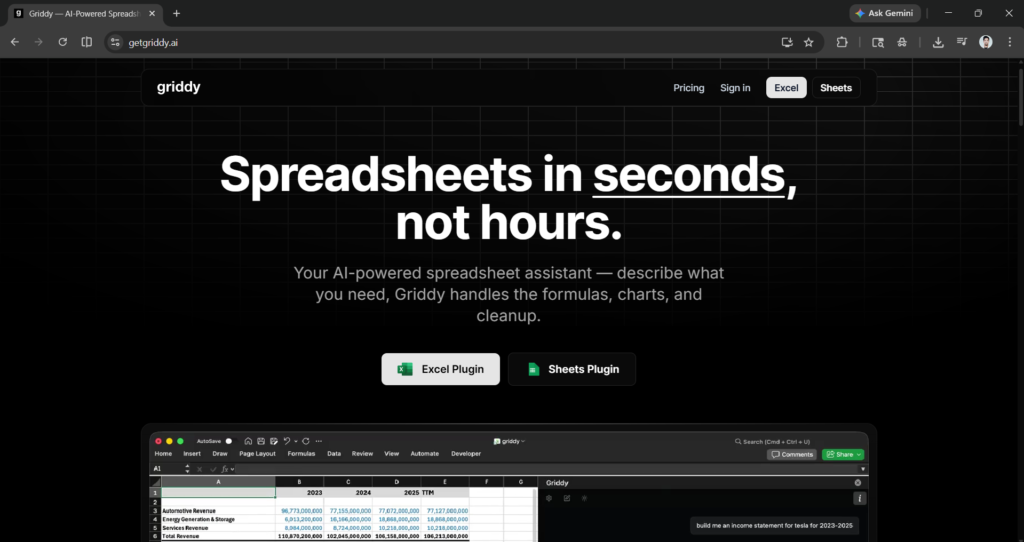
- Select Your Ecosystem: Navigate to the Griddy AI website and choose your preferred environment. The tool supports both a dedicated Google Sheets plugin and a direct integration for Microsoft desktop users.
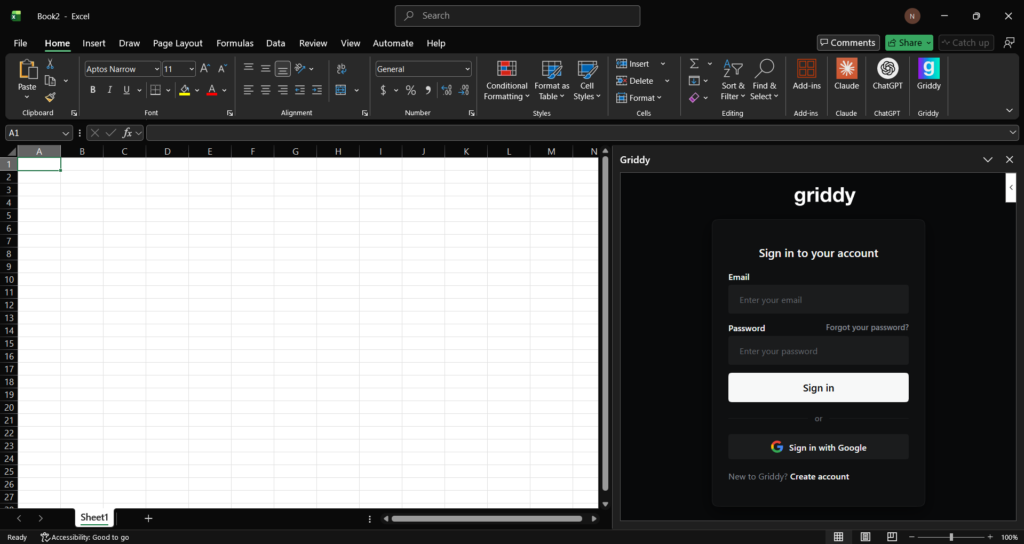
- Install the Integration: For local deployment, open Excel, navigate directly to your Microsoft Excel add-ins menu, and search for Griddy. Click to install the plugin.
- Authenticate: Launch the add-in from your sidebar and create a free account to activate the service.
- Execute Commands: Type your task into the prompt box and allow the AI to generate the corresponding output.
Real-World Testing: Financial Modeling
To test the system’s raw capability, we tasked it with generating structural corporate data.
- Prompt 1: “Build me an income statement for Apple and NVIDIA for 2023-2025.”
- Prompt 2: “Create a comparison table and graphs.”
The assistant successfully mapped out the requested financial structures and generated the corresponding visual data representations, proving its utility for quick comparative analysis.

The ultimate desk upgrade for coders. Features an 8K DPI any-surface track-on-glass sensor, Quiet Clicks, and ultrafast MagSpeed scrolling.
Maximizing Your Workflow: Pricing and Prompt Hacks
Griddy provides a highly capable toolset, but it comes with a strict limitation: free tier users are capped at exactly 10 automated prompts. Once that limit is reached, a premium monthly subscription is required to unlock continued access.
For users looking to maximize the free tier, prompt engineering is essential. Do not waste individual prompts on single actions. Instead, stack your commands by combining multiple queries into a single, comprehensive text block. Because the system processes the entire text block as a single query, you can instruct it to build a table, format the headers, and generate a chart all at once—consuming only one of your 10 free credits.



One Comment