


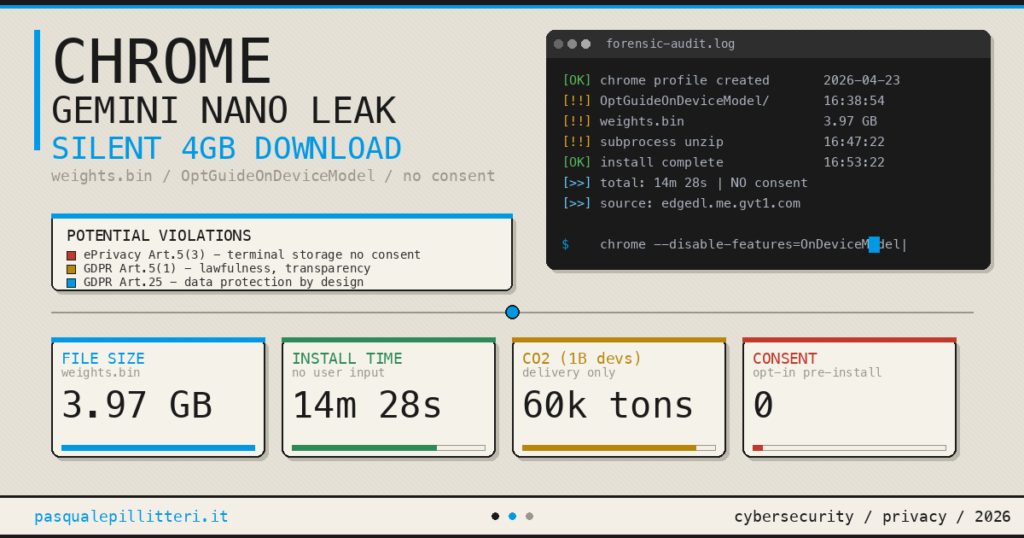
Users running Google Chrome on a desktop operating system may unknowingly host a massive 4GB AI model on their primary storage drive. Between April and May 2026, Google initiated a covert background rollout of its local large language model (LLM). Consequently, the tech giant pushed massive data payloads directly to consumer hardware without an opt-in prompt, consent screen, or explicit notification.
If you notice unexpected storage drops or metered bandwidth drains, you must take immediate action. Fortunately, you can remove Gemini Nano from Chrome completely and reclaim your disk space.
This background deployment is not a standard cloud-based integration. Instead, it is a local language model executing directly on your hardware. Essentially, this background process turns personal machines into distributed compute nodes for Google’s ecosystem.
The Anatomy of the Silent Install: Weights.bin Explained

The hidden background payload is Gemini Nano, a highly compressed version of Google’s flagship generative AI. Unlike cloud-based AI features routed through external servers, Nano runs strictly on local hardware. Specifically, it powers native Chrome features like text generation, tab summarization, and local scam detection.
Google triggers this background download automatically if Chrome detects that a system meets specific processing thresholds. Therefore, the installation executes entirely without user awareness. The core file, named weights.bin, typically consumes around 4.3GB of storage. It sits hidden inside a newly created system directory named OptGuideOnDeviceModel.

Because Chrome entirely bypasses standard download notifications, most users only discover the model via disk space analyzers. Alternatively, severe network lag during the background download often exposes the unauthorized transfer, requiring a dedicated network monitor and firewall like Bitdefender Total Security to actively block unprompted background payloads.
Related: Discover how to optimize Chrome memory usage for better performance.
The Privacy and Legal Threat Vector

This covert deployment of local models raises severe security, compliance, and ethical flags. Securing your operating system with Norton 360 ensures that unexpected registry modifications and unauthorized directory creations are flagged in real-time. Notably, prominent computer scientist and privacy researcher Alexander Hanff exposed the precise mechanics of this silent rollout. Hanff confirmed that Chrome profiles the host hardware and pulls the multi-gigabyte file in approximately 14 minutes. Crucially, this entire process occurs without a single user interaction.

This specific deployment methodology introduces three primary threats to everyday users:
- Compute Cost-Shifting: Google runs inference natively on consumer hardware. Consequently, the company successfully offloads massive energy and server costs onto the end user.
- Regulatory Breaches: Deploying unrequested data files to user storage directly challenges the European Union’s ePrivacy Directive. Furthermore, it violates the General Data Protection Regulation (GDPR), which strictly mandates explicit consent.
- Environmental Impact: Distributing a 4GB payload to hundreds of millions of browsers generates immense, unnecessary network strain. Hanff estimates the carbon footprint of this distribution cycle could reach up to 60,000 tonnes of CO2-equivalent emissions globally.
How to Check if Gemini Nano is Installed
Chrome does not surface Gemini Nano in its standard extension panel or download managers. Therefore, you must manually verify its existence within your operating system’s hidden application data folders.
Windows Directory Verification
First, press the Windows Key + R to open the Run command box. Next, paste the following exact path and press Enter:
<code>%LOCALAPPDATA%\Google\Chrome\User DataFinally, look closely for a folder named OptGuideOnDeviceModel. If this directory exists and contains a large weights.bin file, the model is actively installed on your machine.
macOS Directory Verification
First, open Finder, click Go in the top menu bar, and hold the Option key to reveal the hidden Library folder. Next, navigate through the following path:
<code>Application Support > Google > Chrome > DefaultInside this folder, search specifically for the OptGuideOnDeviceModel folder to confirm the presence of the embedded weights file.

Organise Your Life with ChatGPT (2026)
The ultimate blueprint to automate daily chaos and reclaim 10+ hours a week using advanced AI workflows.
Step-by-Step Guide to Remove Gemini Nano from Chrome

Simply deleting the file via your file explorer provides only a temporary fix. Unfortunately, Chrome’s background updater will automatically redownload the 4GB package during the next automated cycle unless blocked at the network level by advanced firewall routing via Bitdefender. To permanently neutralize the installation, you must execute a multi-layered block.
Phase 1: Disable On-Device AI in Chrome Settings
First, open Google Chrome and click the three-dot utility menu in the top-right corner. Next, navigate directly to Settings > System. From there, locate the toggle labeled On-device AI and switch it to the Off position.
Phase 2: Kill the Optimization Guide via Chrome Flags
Type chrome://flags into your address bar and press Enter. Next, type optimization guide into the internal flag search box. Locate the specific flag named Enables optimization guide on device. Change the dropdown status from Default to Disabled, then completely restart your browser.
[Flag Configuration Reference]
Flag Name: Enables optimization guide on device
Target Status: DISABLED
Phase 3: Purge the Local Files
Now, return to your system’s hidden file directory using the paths detailed in the previous section. Drag the entire OptGuideOnDeviceModel folder to the Trash or Recycle Bin. Finally, permanently empty the bin to clear the storage.
Phase 4: The Hard Block Via Enterprise Policy
For advanced users demanding absolute certainty that Chrome will never pull the payload again, an OS-level policy block is required.
Get the Look: Reference the official Chromium policy documentation for enterprise deployments.
For Windows users, open the Start menu, type regedit, and launch the Registry Editor. Navigate to the following path:
<code>HKEY_LOCAL_MACHINE\SOFTWARE\Policies\Google\ChromeRight-click inside the Chrome folder, select New > DWORD (32-bit) Value, and name it GenAILocalFoundationalModelSettings. Double-click the new value and set its data to 1.
[Registry Configuration]
Key: HKEY_LOCAL_MACHINE\SOFTWARE\Policies\Google\Chrome
Value Name: GenAILocalFoundationalModelSettings
Type: DWORD (32-bit)
Value Data: 1
For macOS users, open the Terminal application. Then, execute the following command string to force the local enterprise policy:
<code>defaults write com.google.Chrome GenAILocalFoundationalModelSettings -int 1

Redefining Device Ownership
The silent installation of Gemini Nano highlights a critical shift in how major tech vendors view consumer hardware. Essentially, the line between a personal machine and a corporate server node is rapidly dissolving. For users operating on metered connections or managing limited SSD space, unauthorized background transfers remain entirely unacceptable. If offloading local files is no longer sufficient, upgrading to a higher-capacity internal Samsung 990 PRO NVMe SSD via Amazon provides the necessary hardware buffer against forced ecosystem bloatware.

SanDisk 1TB Extreme Portable SSD
Up to 1050MB/s, USB-C, USB 3.2 Gen 2, IP65 Water and Dust Resistance. The ultimate external drive for heavy workflows.
Monitoring local network traffic and locking down application permissions represent your most effective defenses against vendor overreach. Deploying a strict endpoint protection protocol through Malwarebytes Premium automatically terminates these covert background processes before they execute. However, if you prefer to bypass Google’s ecosystem entirely, migrating to privacy-first Chromium alternatives may be the most strategic long-term fix.
Google Chrome silently downloads a 4GB local AI model named Gemini Nano onto eligible devices without user consent. The model is stored as a file named weights.bin within the OptGuideOnDeviceModel folder. To remove Gemini Nano from Chrome, users must disable “On-device AI” in Chrome system settings, turn off the Optimization Guide flag via chrome://flags, and manually delete the OptGuideOnDeviceModel directory from their system’s hidden application data folders.



0 Comments